 Back to Main Menu






Introducing the fx-CG100.
Every class. Every day.
Unlock the power of graphing technology with the new fx-CG100. The latest addition to the ClassWiz family. Your everyday hero.


Designed for student success!
You spoke, we listened.
Casio is bridging the gap between scientific and graphing calculators with a standardised user interface! With a seamless transition from scientific to graphing models, students can navigate effortlessly, no need to relearn.
Performance you can count on – reliable and built for ease of use.
We understand that a student’s time is best spent learning, not adjusting to a new calculator. That’s why our latest model ensures:
• A seamless transition from scientific to graphing calculators
• Less time spent relearning navigation and more time focusing on studies
• A familiar, user-friendly experience that stays consistent across devices
For every class, for every day, until tomorrow.
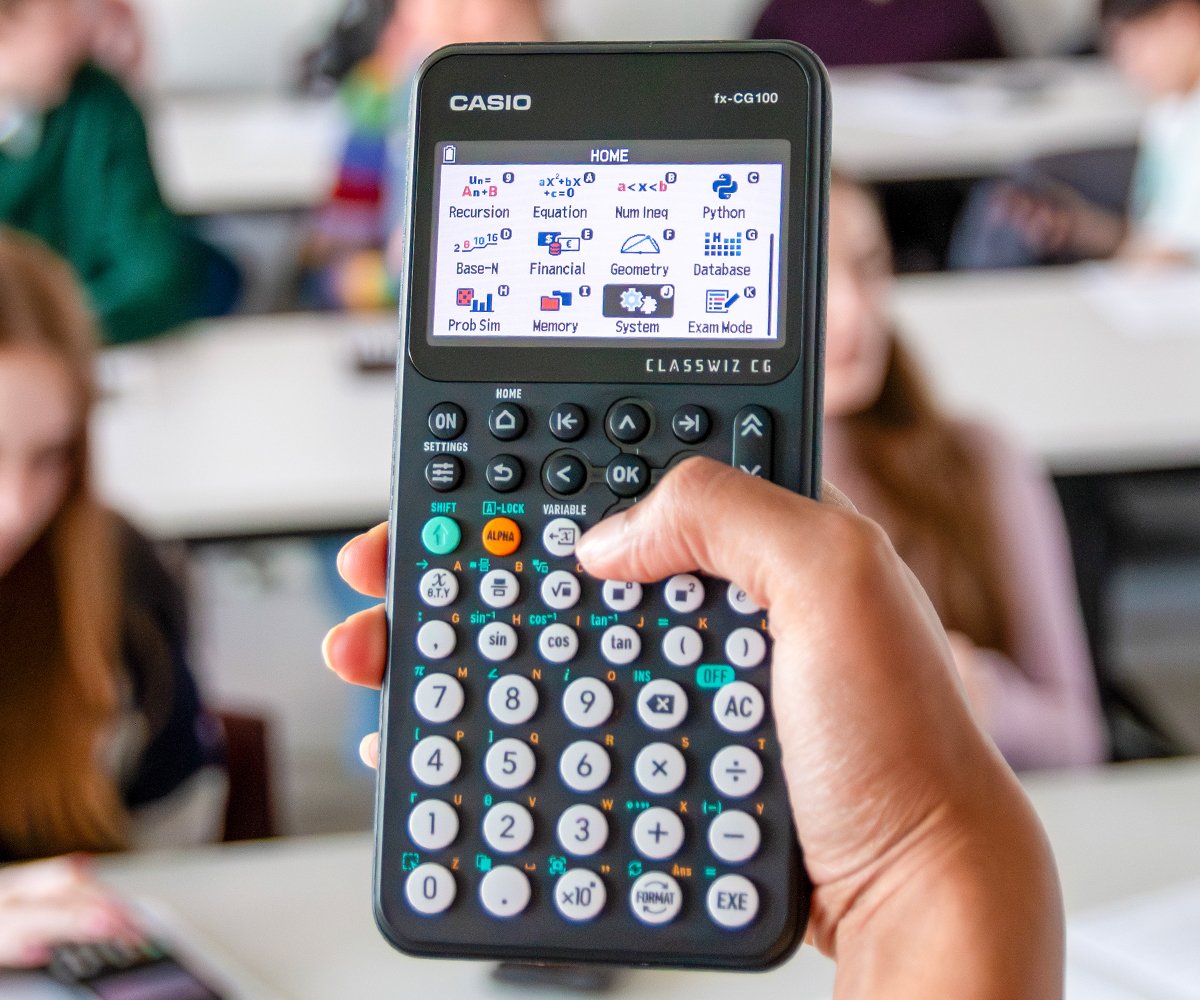
Vibrant display
The high-resolution colour display has a natural representation that allows fractions, square roots and other numerical expressions to appear the same way as they do in textbooks.
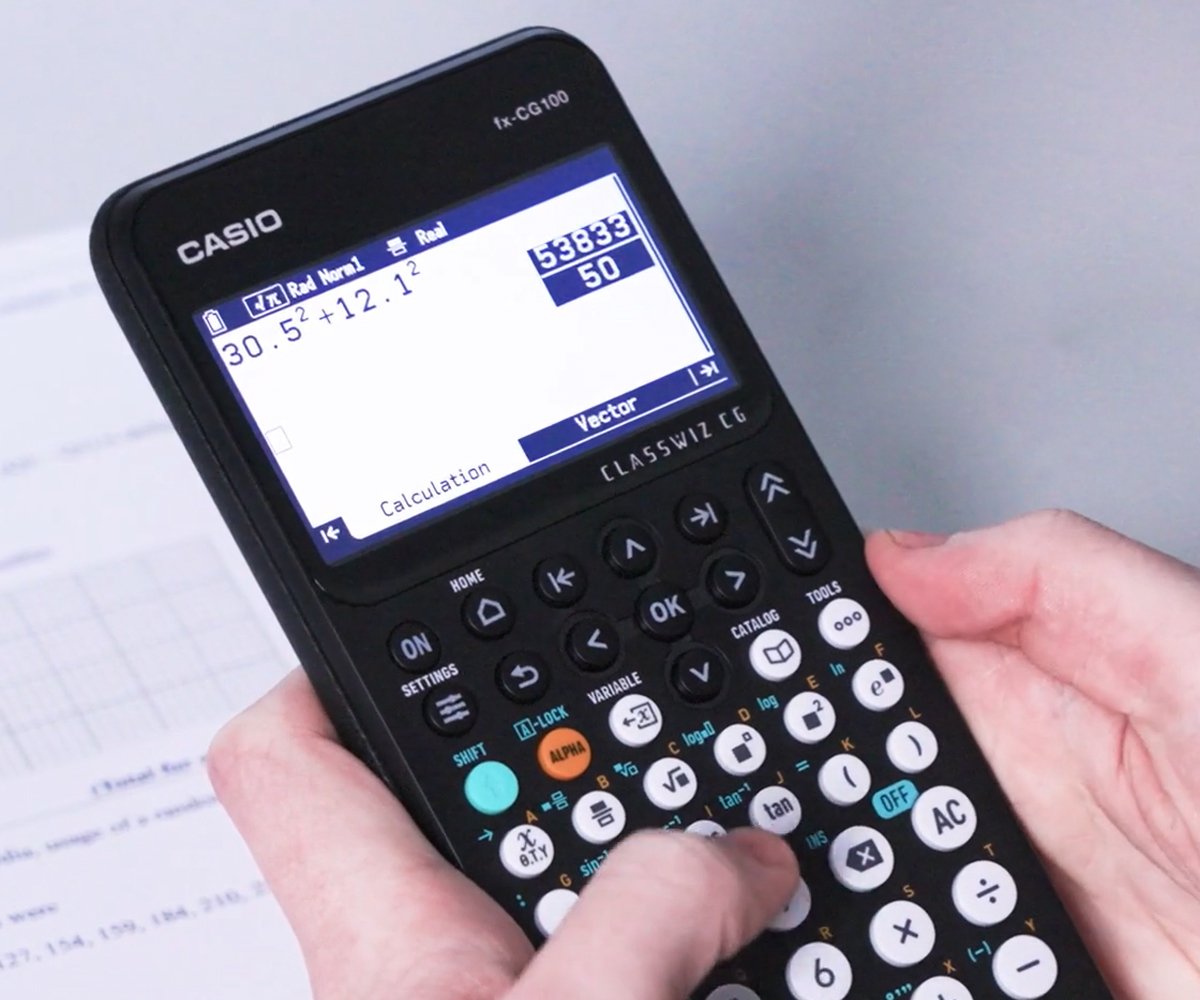
Format key unlocks S<>D
S<>D is easily accessible in one-press via the updated FORMAT key toggle. Making it faster and easier than ever to switch between standard and decimal formats.
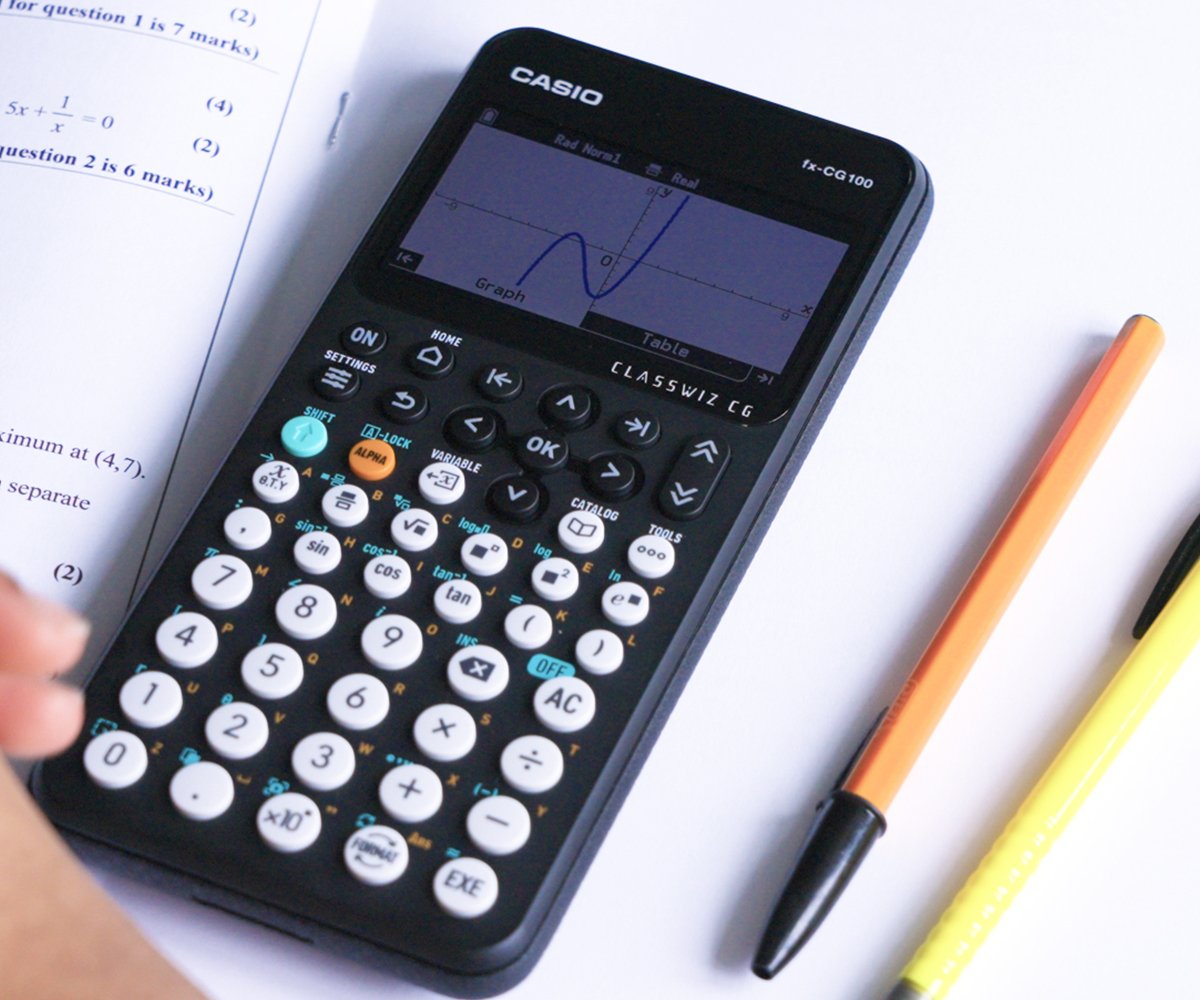
New graph and table app
All the great functionality of the fx-CG50, plus new additions such as Inequality Solver App and Graph and Table app.
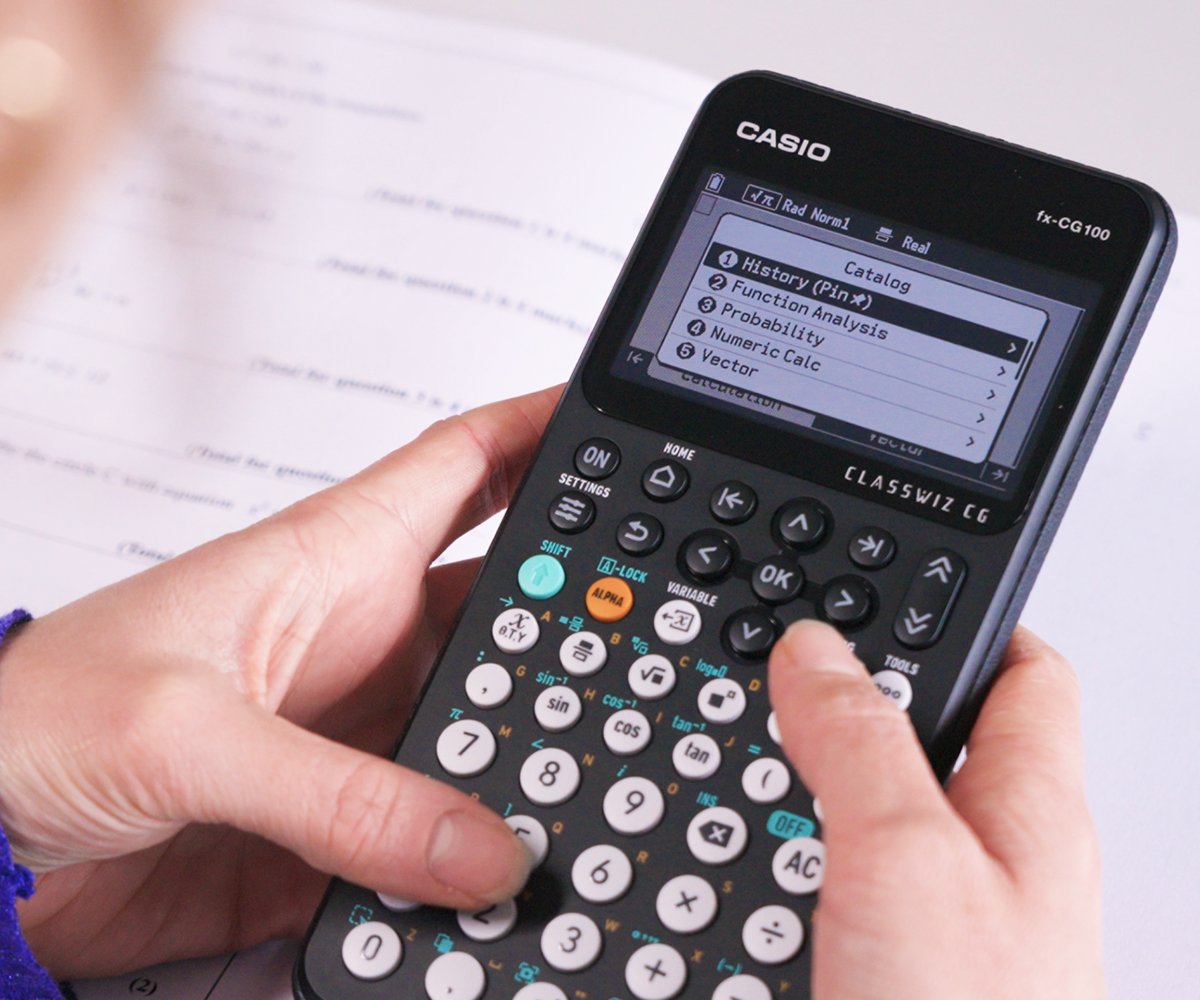
Simple shortcuts
Shortcuts are readily available in all menus by using the represented number keys. Saving time and simplifying navigation.
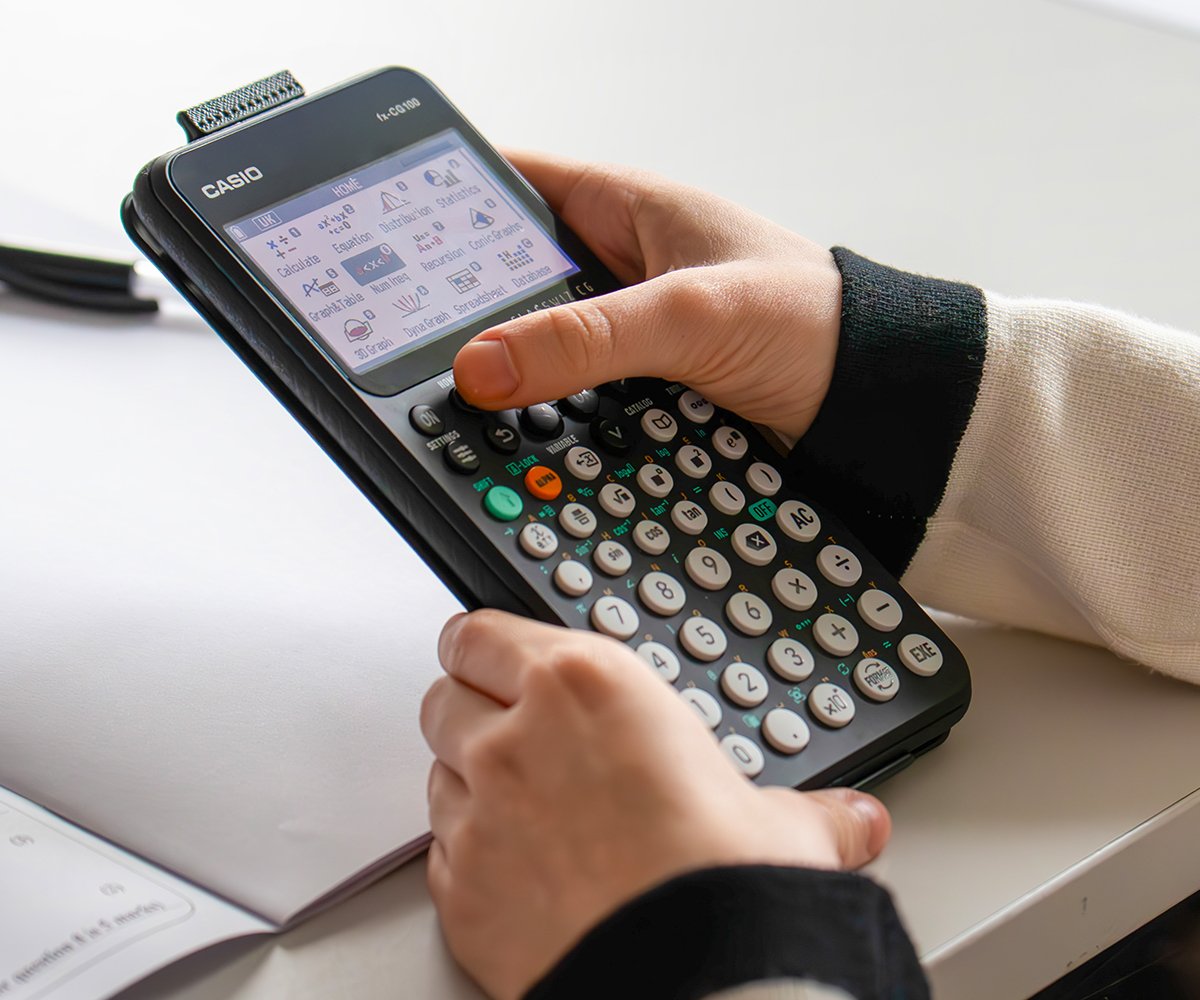
Easy navigation
The keypad design is based on the scientific ClassWiz calculators, providing familiarity and easy navigation for students either transitioning between or using both scientific and graphing calculators.
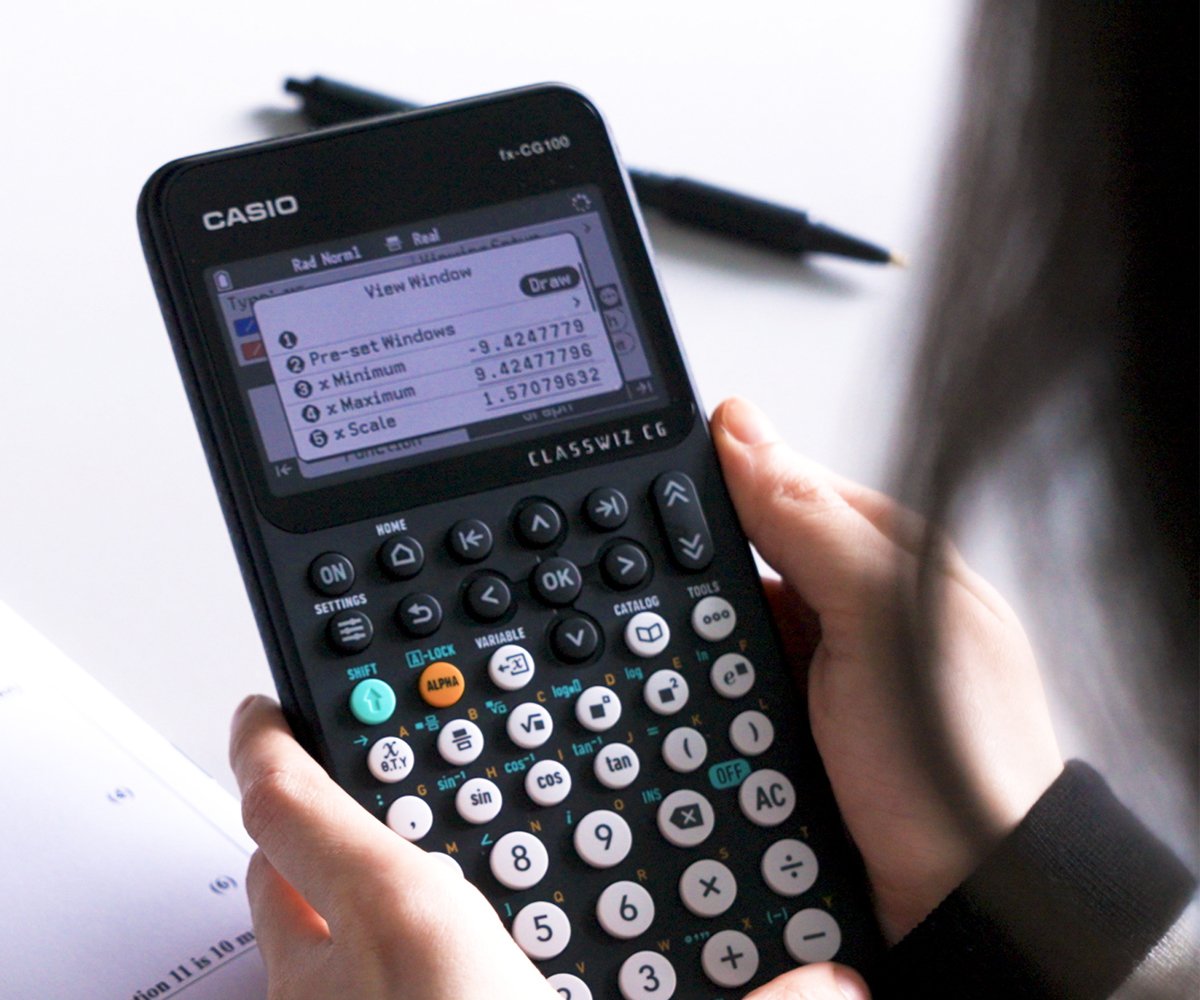
Tabs and pop-ups
The fx-CG100 uses tabs and pop-up menus to help students quickly navigate between functions for fast working
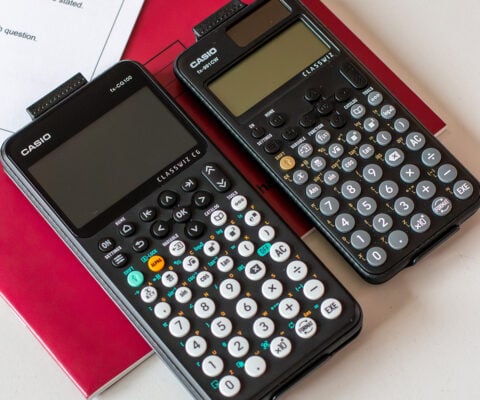
Consistency is the key
ClassWiz design, interface and navigation.
The key operations between the fx-CG100 ClassWiz CG and ClassWiz Scientific series is based on the same user interface and navigation design. By standardising the UI, students do not need to re-learn how to use the calculator, which makes transition from scientific to graphing easier.
This consistency saves time, builds confidence and keeps the focus on learning, not on figuring out how the calculator works. For teachers, it means less explaining and more teaching.
With the fx-CG100, the upgrade to graphing technology feel less like a leap and more like a natural next step.
Exam mode just got easier
The process for setting Exam Mode is simple and straightforward, requiring no manual. It’s designed to be easy to use, ensuring you can activate Exam Mode quickly without any complicated steps or confusion.

Press HOME
Select Exam Mode by scrolling or use the shortcut (

Choose Enter Exam Mode
2 modes are displayed, scroll and select the desired option with |
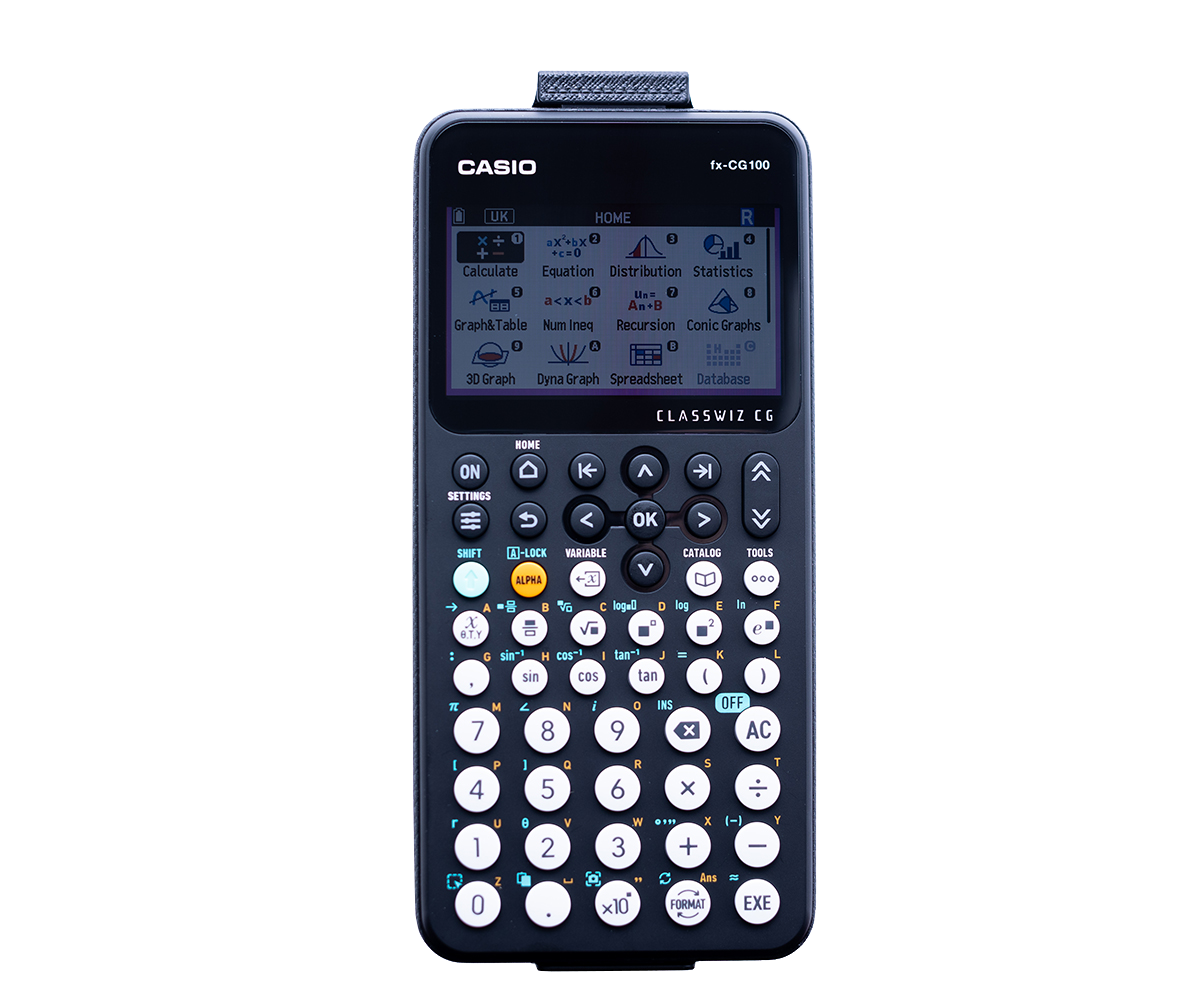
Confirm the choice with |
The handset restarts and displays a coloured border and flashing R in the status bar to indicate Exam Mode. In Home, the restricted apps are greyed out.

New and improved
• fx-CG100 is designed with the ClassWiz concept, user interface and navigation.
• Menus are super easy to use and displays are vibrant and clear.
• S<>D is easily accessible in one-press via the updated FORMAT key toggle.
• Shortcuts are readily available in all menus by using the represented number keys.
• ClassWiz CG shows menu options and functionality clearly. No more confusing abbreviations!
• Designed for the UK with apps set as default for the UK curriculum.
• Exam mode is easy to access!
• All the great functionality of the previous model, plus new additions such as Inequality Solver App and Graph & Table app.
• Easily updateable and with a commitment to continued, UK specific, feature drops and improved functionality.
Resources
In this video you will learn how to reset the main memory on the Casio fx‑CG10…
Learn how to set the UK Country Mode on the Casio fx‑CG100 ClassWiz graphic ca…
In this video you will learn how to activate and configure UK Exam Mode on the C…
In this video you will learn how to solve simultaneous equations graphically in …
Learn how to solve inequalities using the Numeric Inequalities app on the Casio …
Learn how to navigate and use the Casio fx‑CG100 ClassWiz graphic calculator, …
Learn how to complete the initial setup on the Casio fx‑CG100 ClassWiz graphic…
Learn how to solve multi-variable or SUVAT equations in the Equation app on the …
Blog
- Graphing technology
- Scientific calculators
- Exams
- Curriculum
- Classroom
- Students

From fx-991CW+ UK to fx-CG100: making the move at A-level
Read more
How to improve algebraic fluency at A-level
Read more
Seb Bicen’s top tips for using the fx-CG100 in exams
Read more
When is the right time to upgrade to a graphic calculator?
Read more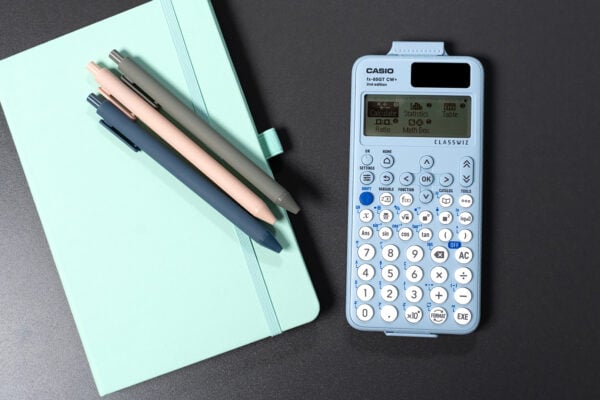
ClassWiz+ compared: which model is right for your classroom?
Read more
From fx-991CW+ UK to fx-CG100: making the move at A-level
Read more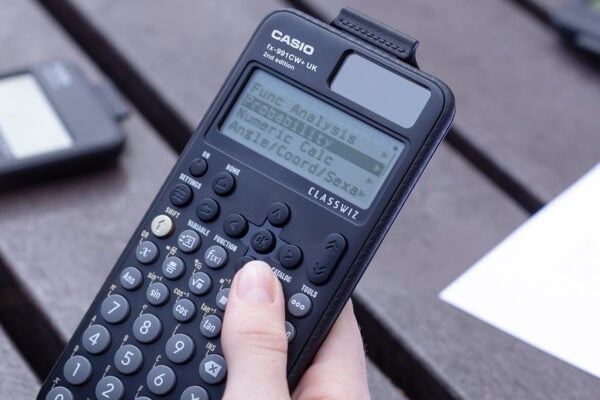
Probability: key challenges and how calculators can help
Read more
Ratio: why is it such a challenge and how can a calculator help?
Read more

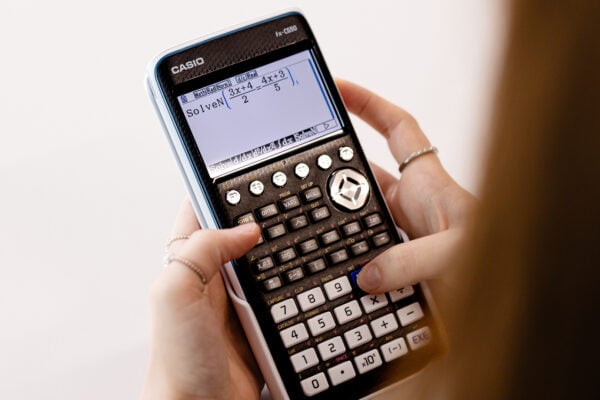


Common mistakes in A-level statistics: probability distributions
Read more
Which Casio calculator does your class need?
Read more
Probability: key challenges and how calculators can help
Read more
Ratio: why is it such a challenge and how can a calculator help?
Read more
Moflin at MEI: how Casio’s AI companion is finding a place in the classroom
Read more
Which Casio calculator does your class need?
Read more
Probability: key challenges and how calculators can help
Read more
Ratio: why is it such a challenge and how can a calculator help?
Read more
Results day: supporting students with their next steps
Read more
Best A-level combinations: a comprehensive guide
Read more
Why is year 7 the perfect time to introduce scientific calculators?
Read more