 Back to Main Menu




fx-CG100 OS updates
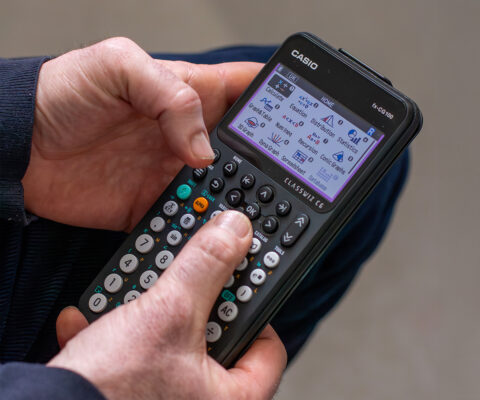
We are please to introduce a new OS update for the fx-CG100 graphic calculator. Are you ready to update your calculator to 2.1? Please follow these steps.

Key Updates
1. Linear template for linear implicit functions of the form ax + by + c = 0.
2. Modify mode improvements: Added Zoom (+/- keys) and options in tools.
3. Equation App: For Quadratics the Discriminant (d) is also displayed
4. E-CON5 app is installed
5. CSV: Import Sub Name
6 Automatic Parenthesis when using the Scientific key (in line with the CW+ Models)
7. Screen Receiver has been enabled, this can be downloaded and installed from here https://edu.casio.com/forteachers/er/software/
Important Pre-Update Notes
• Updating the OS deletes all data in the calculator’s Main Memory.
• Cable Requirement: The fx-CG100 uses a USB-C cable. Ensure you use a high-quality cable capable of data transfer
• Battery Power: Ensure your batteries are fresh.
• Only 1 calculator per device can be updated at a time
• Refrain from using the devices whilst the update is taking place.
Step-by-Step Update Guide
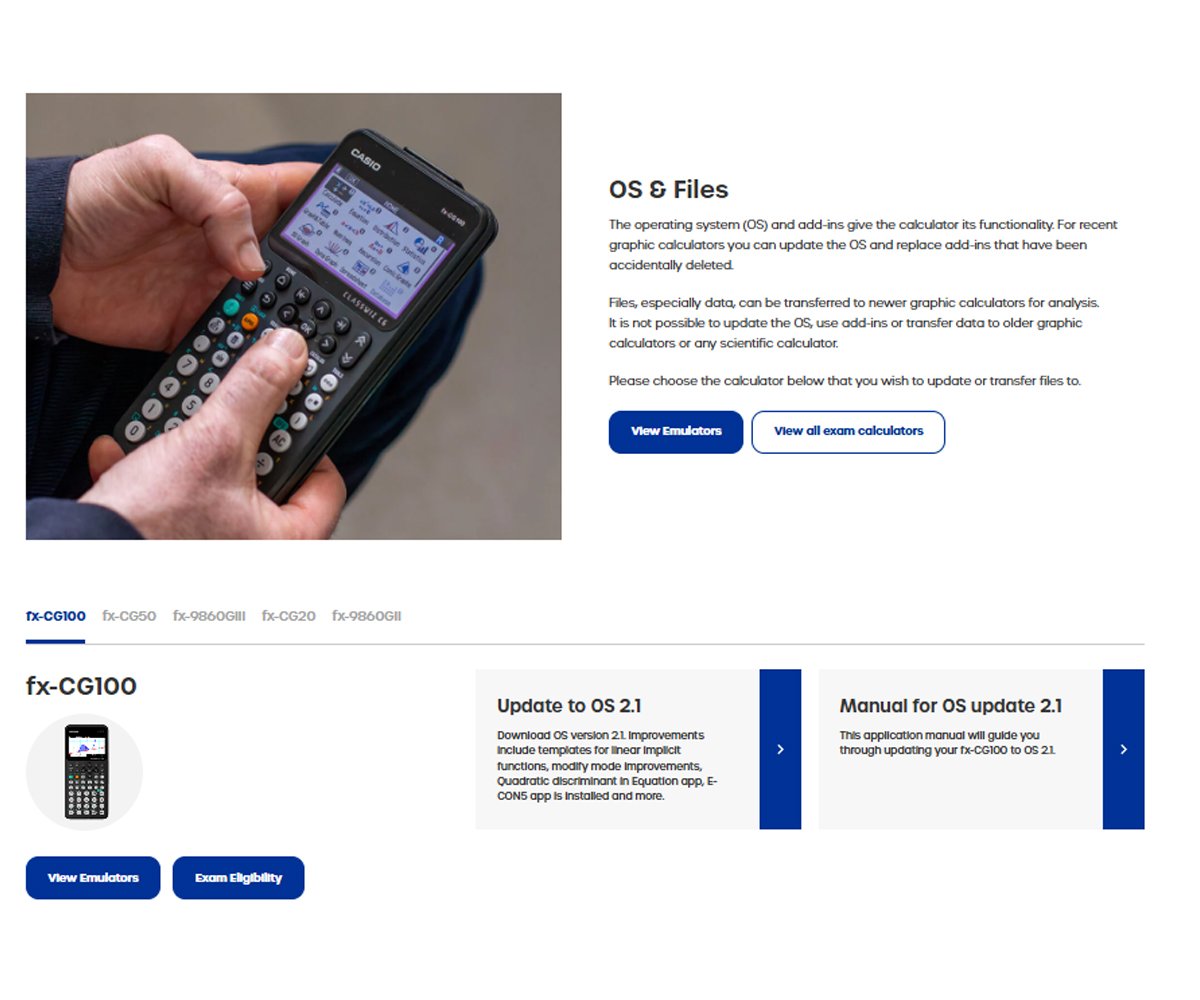
1. Download the Update Software
This file can be downloaded here.
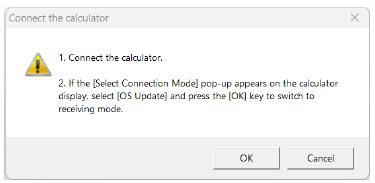
2. Prepare the Computer
• Close all other applications to prevent any interference with the USB connection.
• Run the update file
• Crucial: Do not connect your calculator to the PC yet. Wait until the software explicitly asks you to.
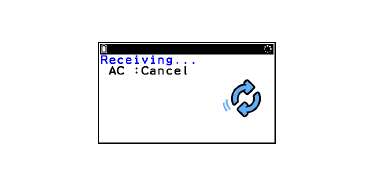
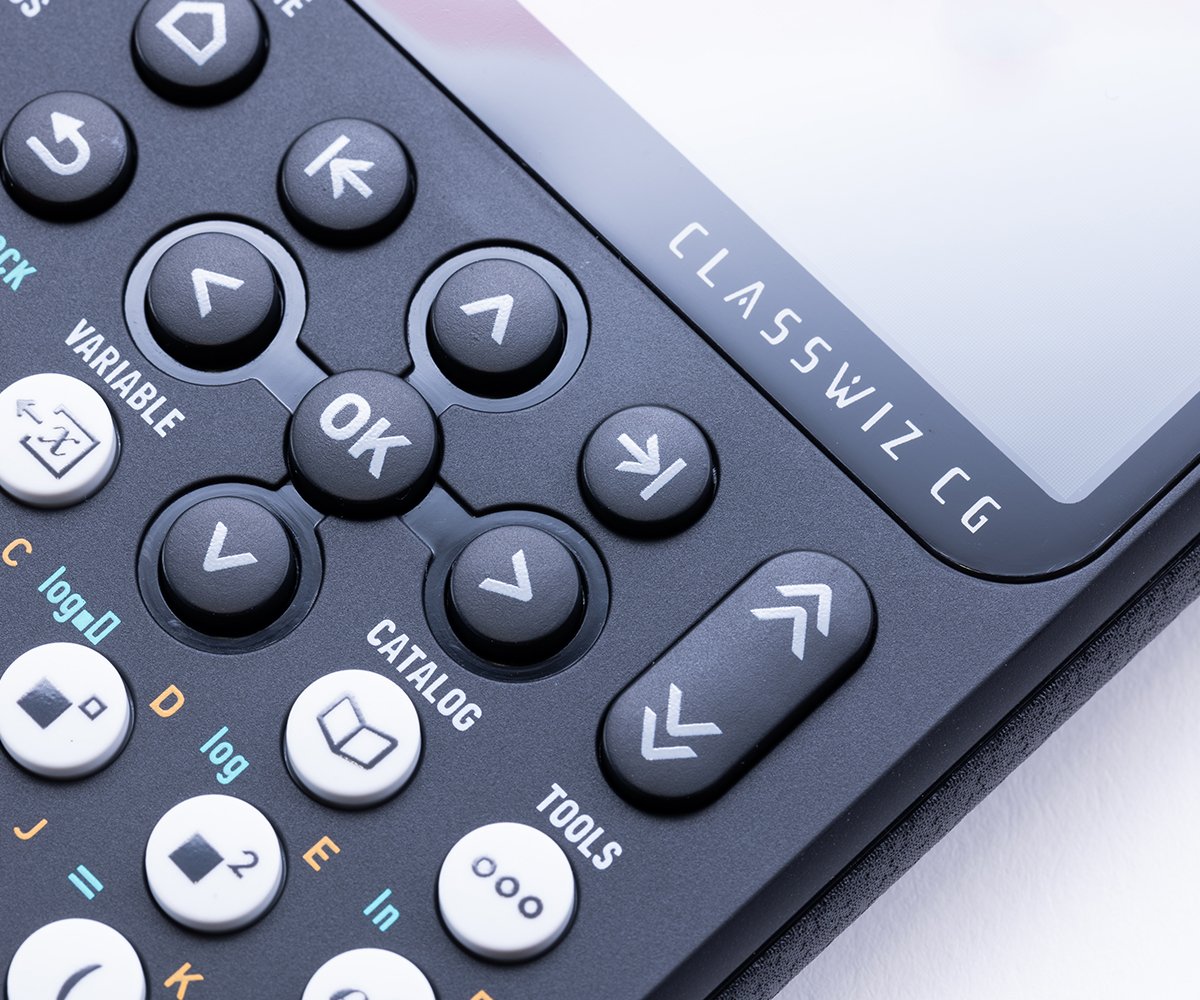
3. Prepare and connect the Calculator
• Turn the calculator OFF.
• Plug the USB-C cable into your calculator and then into a direct USB port on your computer (avoid using USB hubs).
• If the calculator asks for a “Connection Mode,” select OS Update
• The screen should say “Receiving…”
4. Connect and Execute
• On your computer screen, click Next or OK in the update software.
• The update will begin. You will see a progress bar on your computer and an “Updating…” message on the calculator. Do not touch the cable or the calculator during this time.
• This process can take between 10-15 minutes

5. Finalise the Update
• Once the computer displays “Update Complete,” you can safely disconnect the cable.
• The calculator will likely restart automatically. You may need to go through the initial setup again (Language, Battery Type, etc.).
Troubleshooting:
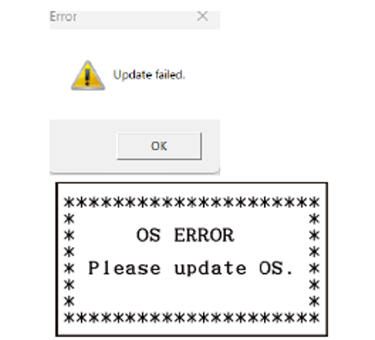
“Update Failed” and “OS ERROR”
If the cable is accidentally unplugged or the update fails, you may see an OS ERROR or a similar message:
• Don’t panic; this is a recovery mode.
• Press the RESTART button on the back of the calculator
• Unplug the calculator and restart the update software on your computer. It should detect the calculator in recovery mode and allow you to re-run the installation.

FAQs
A collection of the most frequently asked questions regarding our emulators and products.

Supported pricing for UK schools
Casio provide supported pricing available for UK schools and educational institutions participating in our programmes.

Looking to enhance your skils?
We offer FREE induction training to schools to give an insight to popular functions of the fx-CG50. Designed so you will acquire key skills and gain confidence using the handset.
Blog
- Graphing technology
- Scientific calculators
- Exams
- Curriculum
- Classroom
- Students

From fx-991CW+ UK to fx-CG100: making the move at A-level
Read more
How to improve algebraic fluency at A-level
Read more
Seb Bicen’s top tips for using the fx-CG100 in exams
Read more
When is the right time to upgrade to a graphic calculator?
Read more
ClassWiz+ compared: which model is right for your classroom?
Read more
From fx-991CW+ UK to fx-CG100: making the move at A-level
Read more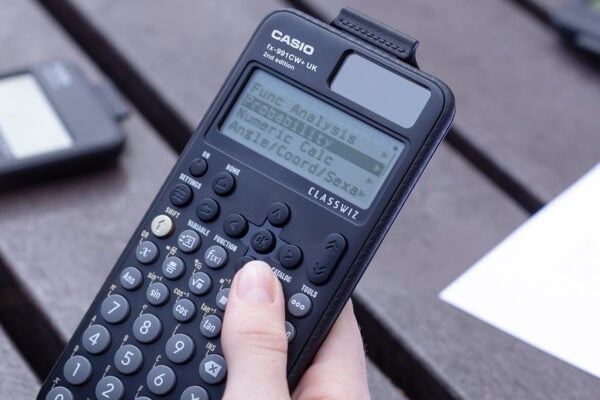
Probability: key challenges and how calculators can help
Read more
Ratio: why is it such a challenge and how can a calculator help?
Read more

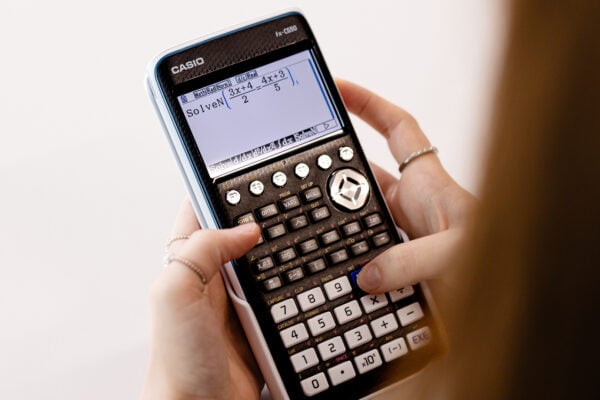


Common mistakes in A-level statistics: probability distributions
Read more
Which Casio calculator does your class need?
Read more
Probability: key challenges and how calculators can help
Read more
Ratio: why is it such a challenge and how can a calculator help?
Read more
Moflin at MEI: how Casio’s AI companion is finding a place in the classroom
Read more
Which Casio calculator does your class need?
Read more
Probability: key challenges and how calculators can help
Read more
Ratio: why is it such a challenge and how can a calculator help?
Read more
Results day: supporting students with their next steps
Read more
Best A-level combinations: a comprehensive guide
Read more
Why is year 7 the perfect time to introduce scientific calculators?
Read more