 Back to Main Menu




Radians on a calculator: how to use RAD mode correctly
Learn how to use radians on a calculator, switch between RAD and DEG modes, and avoid common calculator mistakes in maths exams.

Scientific and graphic calculators offer the advantage of being able to work in either degrees or radians, but being in the wrong angle unit can lead to incorrect answers. This is a common issue in maths exams, especially when calculators are accidentally left in degree mode.
Understanding how to use radians on a calculator and check your current settings can help you avoid unnecessary mistakes and work more confidently with trigonometry, graphs and other mathematical topics.

What does radian mode mean on a calculator?
Radians are an alternative way of measuring angles. While degrees divide a full circle into 360 parts, radians measure angles based on the radius of a circle. A full turn is equal to 2π radians, while half a turn is π radians.
On a calculator, the main difference between radians and degrees is how trigonometric calculations are interpreted. For example, entering a value into the sin, cos or tan function will produce different answers depending on whether the calculator is set to RAD mode or DEG mode.
All Casio calculators make it easy to see which angle unit is currently selected. On ClassWiz+ scientific calculators, an R appears at the top of the display when radian mode is active and a D denotes degrees. On the fx-CG100 graphic calculator, Rad is shown at the top of the screen for radians and Deg for degrees.
Radian mode is most commonly used when working with trigonometric graphs, circular measure, calculus and other advanced mathematical topics. Many A-level maths questions require answers in radians, so it’s always a good idea to check your calculator settings before answering a question.
How to put a Casio calculator in radian mode

Switching to radian mode on ClassWiz+ calculators
If you’re using a ClassWiz+ scientific calculator and need to work in radians, you can change the angle unit through the calculator settings menu in just a few steps:
1. Press Settings
2. Open the Calc Settings menu
3. Select Angle Unit
4. Scroll down to Radian and press OK
Once selected, the calculator will use radians for trigonometric calculations until the setting is changed again.

Switching to radian mode on the fx-CG100
The fx-CG100 graphic calculator provides the same functionality, with the angle unit and many other settings accessed directly through the handset’s menu. To switch to radian mode:
1. Press Settings
2. Select Angle
3. Scroll down to Radian and press OK
After changing the setting, any compatible app on the calculator will use radians as the default angle unit.
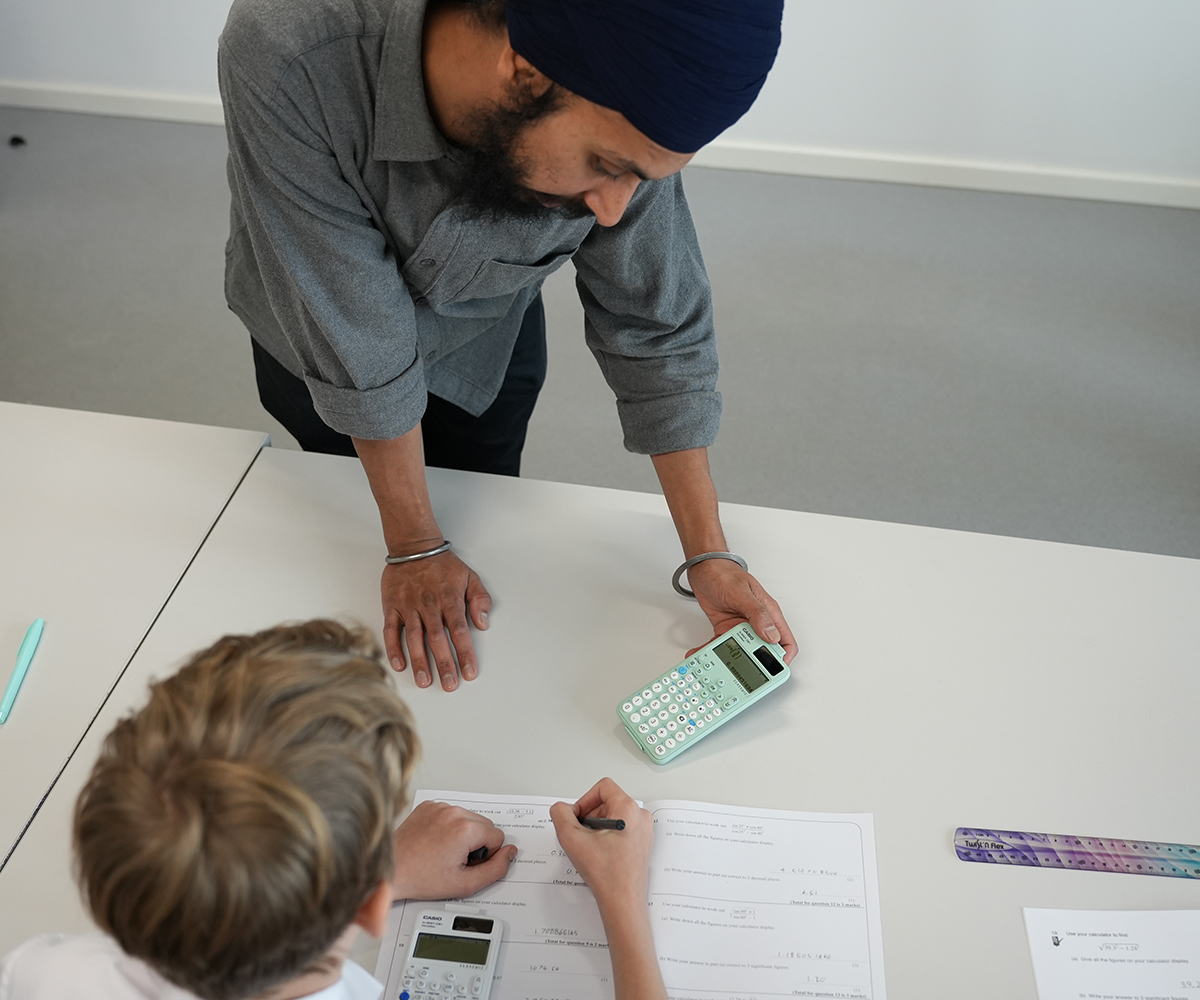
Switching back to degrees or gradians
If you need to use a different angle unit, you can switch from radians using the same process outlined above. Simply return to the angle settings menu and select either Degree or Gradian instead of Radian.
Most maths questions will clearly indicate which angle unit should be used. Degrees are common in many geometry and introductory trigonometry questions, while radians are often used in more advanced topics.
Before starting a calculation, it’s worth taking a moment to check the correct angle unit is selected. Working in the wrong mode can produce unexpected answers, even when the calculation has been entered correctly. During exam preparation and assessments, this simple check can help avoid unnecessary confusion and reduce the risk of losing marks through a calculator setting error.

Quick radians and degrees troubleshooting checklist
If your calculator is producing unexpected trigonometry answers, run through this quick checklist before trying the calculation again:
• Check the calculator display shows R or Rad if the question requires radians.
• Look for clues in the question, such as angles expressed in terms of π, which often indicate that radian mode should be used.
• Confirm the angle unit before using trigonometric functions such as sin, cos and tan.
• If your answer seems very different from the expected result, verify that the calculator is not still in DEG mode.
• After resetting your calculator or changing calculator settings, check that the angle unit has not changed.
• During exam preparation, practise switching between angle units so it becomes part of your normal calculator routine.
Many calculator troubleshooting issues can be solved by checking the current angle unit. A few seconds spent confirming the setting can prevent confusion and help ensure your calculations are based on the correct mode from the start.

Making angle units part of your calculator routine
Whether you’re using a Casio scientific calculator or a graphic calculator, becoming familiar with angle units is an important part of using your device effectively.
Rather than treating angle units as something to check only when a problem arises, try making them part of your normal calculator routine. Taking a moment to confirm the correct setting before starting a question can improve accuracy and build confidence, particularly when working under exam conditions.
Whether you’re tackling trigonometry, geometry, graphs or any other mathematical topic, the Casio Education Resource Centre can help with guides, tutorials and classroom materials designed to help you get the most from your calculator. Exploring these resources can help you develop stronger calculator skills and make full use of the features available on your device.
Blog
- Graphing technology
- Scientific calculators
- Exams
- Curriculum
- Classroom
- Students






Common mistakes in A-level statistics: probability distributions
Read more
Which Casio calculator does your class need?
Read more
Probability: key challenges and how calculators can help
Read more
Ratio: why is it such a challenge and how can a calculator help?
Read more
Moflin at MEI: how Casio’s AI companion is finding a place in the classroom
Read more
Which Casio calculator does your class need?
Read more
Probability: key challenges and how calculators can help
Read more
Ratio: why is it such a challenge and how can a calculator help?
Read more
Results day: supporting students with their next steps
Read more
Best A-level combinations: a comprehensive guide
Read more
Why is year 7 the perfect time to introduce scientific calculators?
Read more