Back to Main Menu




Using the FORMAT key on ClassWiz+ calculators

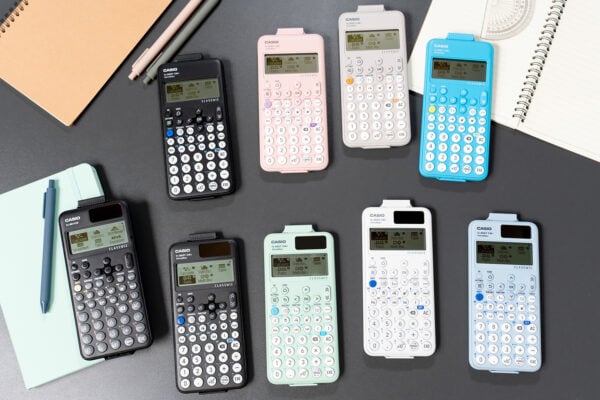
Our new ClassWiz+ range of scientific calculators offers a range of upgraded functionality based on teacher feedback. While the overall interface and usage of the calculators should feel instantly familiar to your students, there are a few new and updated features that it’s important to be aware of. Understanding what’s changed helps make using the ClassWiz+ range as easy as possible.
One such feature is the updated FORMAT key. In this blog, we’ll explain exactly what’s new, how to access its powerful range of options, and where to adjust the default settings that control how the key behaves.
What’s changed with the FORMAT key?
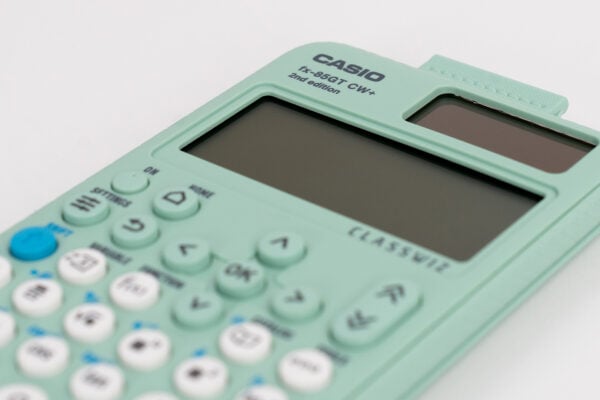
The enhanced FORMAT key is one of the most significant changes in the ClassWiz+ range. Across the fx-83GT CW+, fx-85GT CW+ and fx-991CW+ UK models, the key allows for simplified conversions between output forms, allowing you to switch answers from standard to decimal and back with a single press, as well as access a greater range of options more easily.
We’ve made these changes following feedback from teachers about the number of inputs that were required to perform essential operations on the previous generation of ClassWiz handsets. We’ve taken those comments on board and made sure it’s quicker and easier than ever to access the most important features and commands you’ll need – not just with the FORMAT key, but across the calculators.
This makes using the devices faster and more intuitive, which in turn leads to better outcomes both in the classroom and in exams.
How to use the FORMAT key in practice
So what does this mean in practice for your lessons? Here are some examples of how to use the FORMAT key in calculations. The following apply to all devices in the ClassWiz+ range.
Let’s say, for example, we want to enter the following simple calculation: 125 x ⅚
By default, entering this into a ClassWiz+ device will display the answer as an improper fraction – in this case, 625/6. You can then use the FORMAT key to alter how the answer appears.
A single press of the FORMAT key on a ClassWiz+ calculator with no other input will then change the answer into a decimal. Pressing the key again will return to the standard format, allowing you to toggle between the two options with a single press.
The full range of formatting options can be accessed via the Format menu. This is found by pressing SHIFT and FORMAT. Performing this operation will display the updated menu. This menu is context-sensitive, meaning it adapts to the calculated value to show the additional formats that are available beyond standard and decimal.
It also displays the shortcut keys that can be used for adjusting the format. In the example above, selecting shortcut 3 will show a recurring decimal. Other options, which can be found by scrolling down, include mixed numbers, standard form and sexagesimal for displaying hours, minutes and seconds.
How to adjust the FORMAT key’s functionality
How the FORMAT key performs by default can also be changed in the calculator’s settings menu. This can be found by pressing the SETTINGS key, and then selecting Calc Settings > FORMAT Key.
Here, you’ll be able to turn the Format menu toggle to On. With this enabled, a single press of the FORMAT key will display the full Format menu rather than switching between standard and decimal. This can be especially useful if students are performing multiple calculations that require a specific output format, as it reduces the number of key presses required. In this mode, the ability to toggle directly between standard and decimal can still be accessed by pressing SHIFT and FORMAT.
Improving interfaces to make student and teacher lives easier
The upgrade to the FORMAT key is all about streamlining operations so that users can spend less time navigating menus and more time engaging with the questions – something that will prove especially useful in exams, where time is precious.
It’s a direct result of the extensive feedback we always gather from real teachers to find out what their pain points are. You’ve told us that the need to move through a sequence of key presses to accomplish common tasks such as switching between formats impacted speed and efficiency, so the ClassWiz+ range seeks to address this.
Using the FORMAT key in the new models is now easier and helps students move seamlessly between fractions and decimals as required – and it’s already received a positive reception from teachers.
If you want to learn more about what’s new and improved in the ClassWiz+ range, keep an eye on our resources centre, where we’ll be showcasing a range of webinars, Key Skills videos and more to help you and your students build confidence in classroom calculator use.