Back to Main Menu




Preparing students using the fx-CG50 in exams

A year on from the launch of the fx-CG100 graphic calculator, many classrooms are now working with this handset alongside its predecessor, the fx-CG50.
Lots of students will be using the fx-CG50 in their exams this year. Here are a few key tips and reminders to help them make the most of it.
Practical exam reminders and tips
Activating Exam Mode
Students should be familiar with how to put their calculator into Exam Mode before the day itself. This shows invigilators that the memory is clear and that the calculator meets exam requirements, as indicated by the magenta screen border.
To activate Exam Mode on the fx-CG50:
- Turn the calculator off by pressing SHIFT and AC/ON
- Press and hold the keys labelled ‘U’ and ‘K’
- Continue holding the ‘U’ and ‘K’ keys, then press and hold AC/ON
- When asked if you want to enter Examination Mode, press F1 for yes or F6 for no
- On the next screen, press F2 to confirm you want to enter Examination Mode
- When you see the message stating that Examination Mode is not allowed in IB exams, press F1 to confirm
Exam Mode expires after 12-16 hours, and any data or settings previously stored on the handset will be restored once Exam Mode finishes.
Updating the OS
Students using the fx-CG50 should check their handset is running the current operating system (OS 3.80) to ensure they have access to the latest updates and improvements, such as the Distribution app.
Download links and instructions to install OS 3.80 are available here.
Checking and changing angle units
Students should be confident switching between degrees and radians. Using the wrong setting can lead to unexpected answers, which can be confusing in an exam.
Angle units can be changed by pressing SHIFT and MENU to open the SETUP menu, then choosing Angle and making the required selection.
Adjusting graph view window settings
Being able to view graphs clearly is essential when interpreting results. Students can adjust the graph window by pressing V-WIN (F3) when viewing a graph, which lets them change the minimum and maximum X and Y values, as well as the scale and other settings.
Encouraging students to check and adjust these parameters can make it much easier to analyse graphs accurately and avoid any unnecessary confusion.
Using key features effectively in exams
Alongside these checks, it’s important that students feel confident using the fx-CG50’s core functionality to support their work in exams.
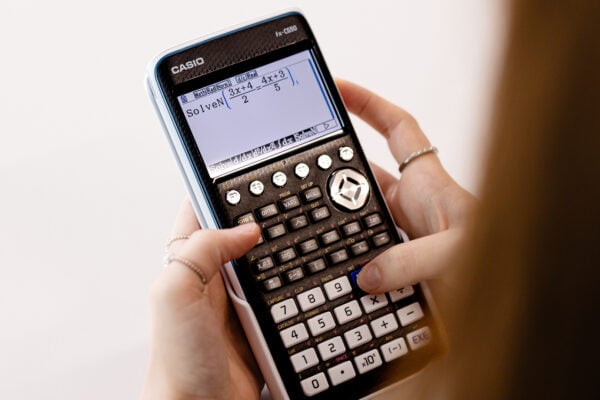
Equation solving with tools like SolveN, for example, helps with checking answers quickly and accurately, particularly when working with advanced simultaneous equations or polynomials. Being comfortable with processes like this can help students shore up their mathematical thinking and reduce the risk of errors.
Graphing is just as useful. It allows students to visualise functions, check shapes and identify key features such as intersections. This can be especially helpful when verifying the number of solutions or sense-checking answers.
Students can also benefit from storing calculated values in memory using the store arrow key. This allows them to reuse results in later calculations without re-entering them, saving time and reducing the chance of input mistakes.
Beyond these core features, apps such as Statistics and Distribution can support students working with probability and data, while Recursion can help when exploring sequences and series in more depth.
If you have classes that would benefit from a recap on fx-CG50 tools and functionality, you can access a whole library of focused resources on the Casio Education website.